Plan a gallery wall on a photo of your actual room
A gallery wall planner helps you decide which art goes where on a wall before you hang anything. WallMoment's planner starts from a photo of your own wall: you upload it, AI generates a complete arrangement shown on your photo, and you can change the style, swap any piece, then order the pieces as framed or unframed prints.
Free to plan. No account needed until you order.
or start from scratchWhat is a gallery wall planner
A gallery wall planner shows you a full arrangement of frames before you buy or hang anything. Instead of guessing how pieces will look together, you see a complete arrangement on a photo of your own wall.
WallMoment places new art only on empty wall space in your photo, and the AI is instructed to keep it clear of windows, doors and furniture.
How it works
- Step 1
Upload a photo of your wall
Tap Upload your wall photo and choose a photo of your wall from your phone or computer.
- Step 2
AI generates your gallery wall
WallMoment analyzes your wall and generates a complete arrangement shown on your photo, starting with the Modern Abstract theme and the Gallery Grid layout.
- Step 3
Change the style and edit pieces
Tap Regenerate to pick one of 30 curated themes or describe your own with Custom Prompt, and to switch the layout style. Use Regenerate or Edit on any single piece to change just that piece.
- Step 4
Order framed or unframed prints
Add pieces to your cart, or buy the whole wall. In the cart, choose a Black, Natural or White frame, or No Frame, for each piece, then check out. You create a free account at checkout.
See it on a wall
Drag the slider to compare each room before and after an arrangement is added.

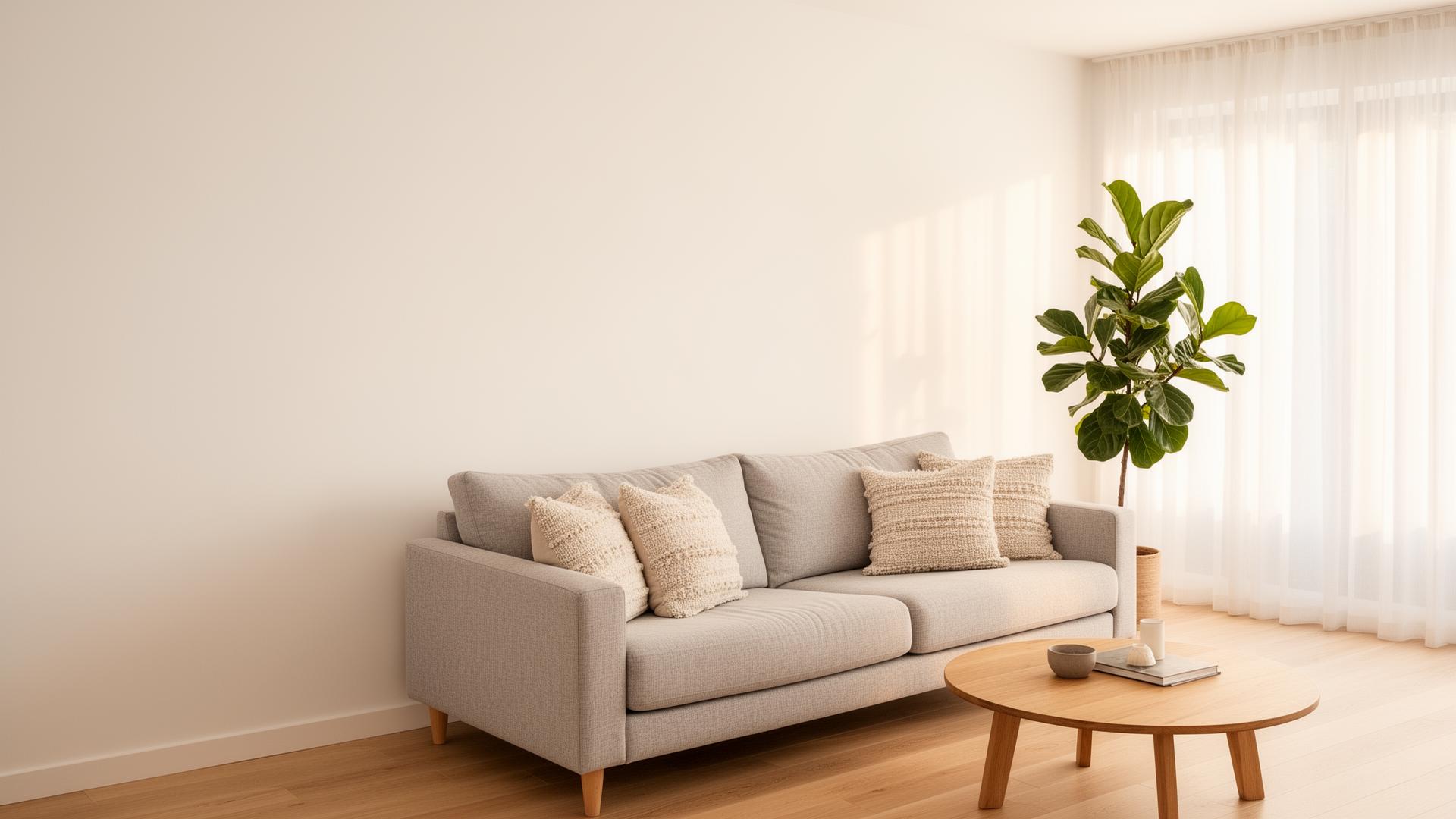
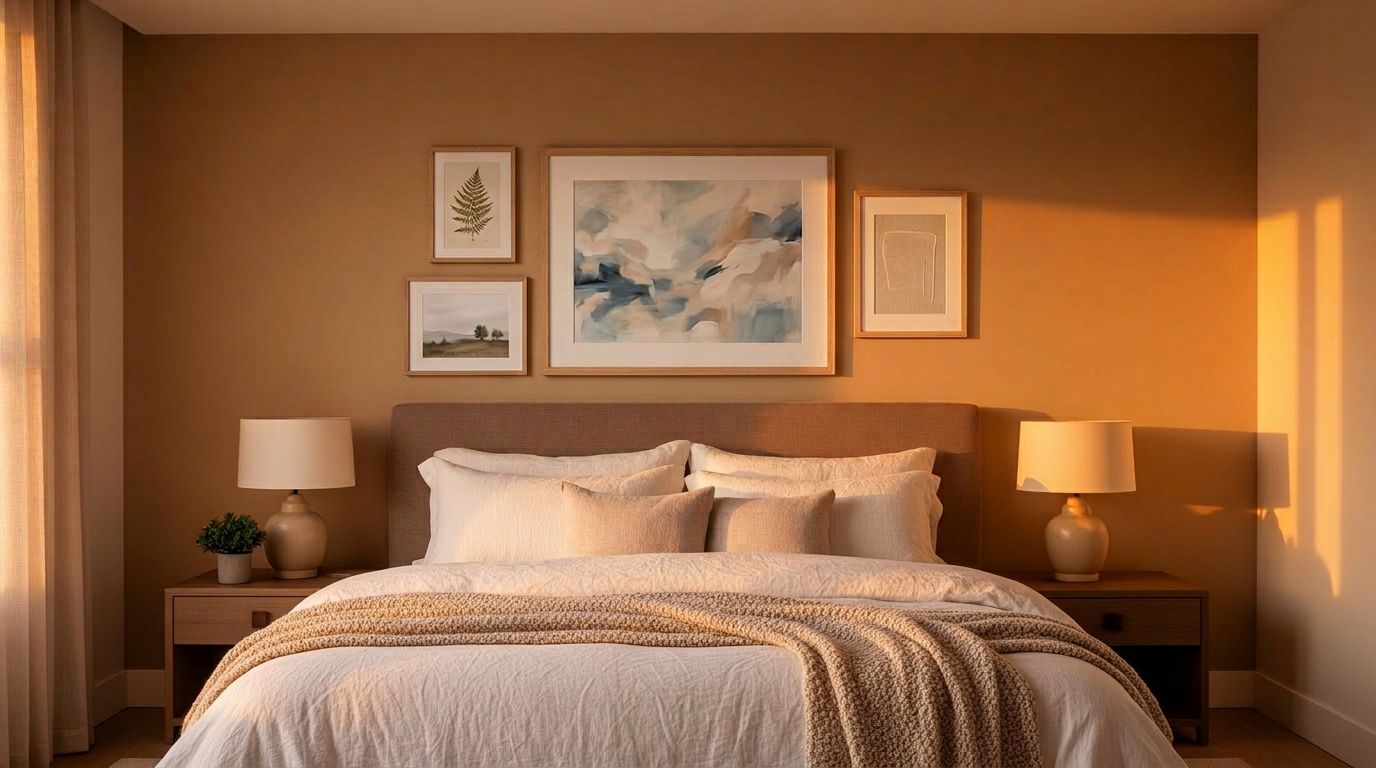
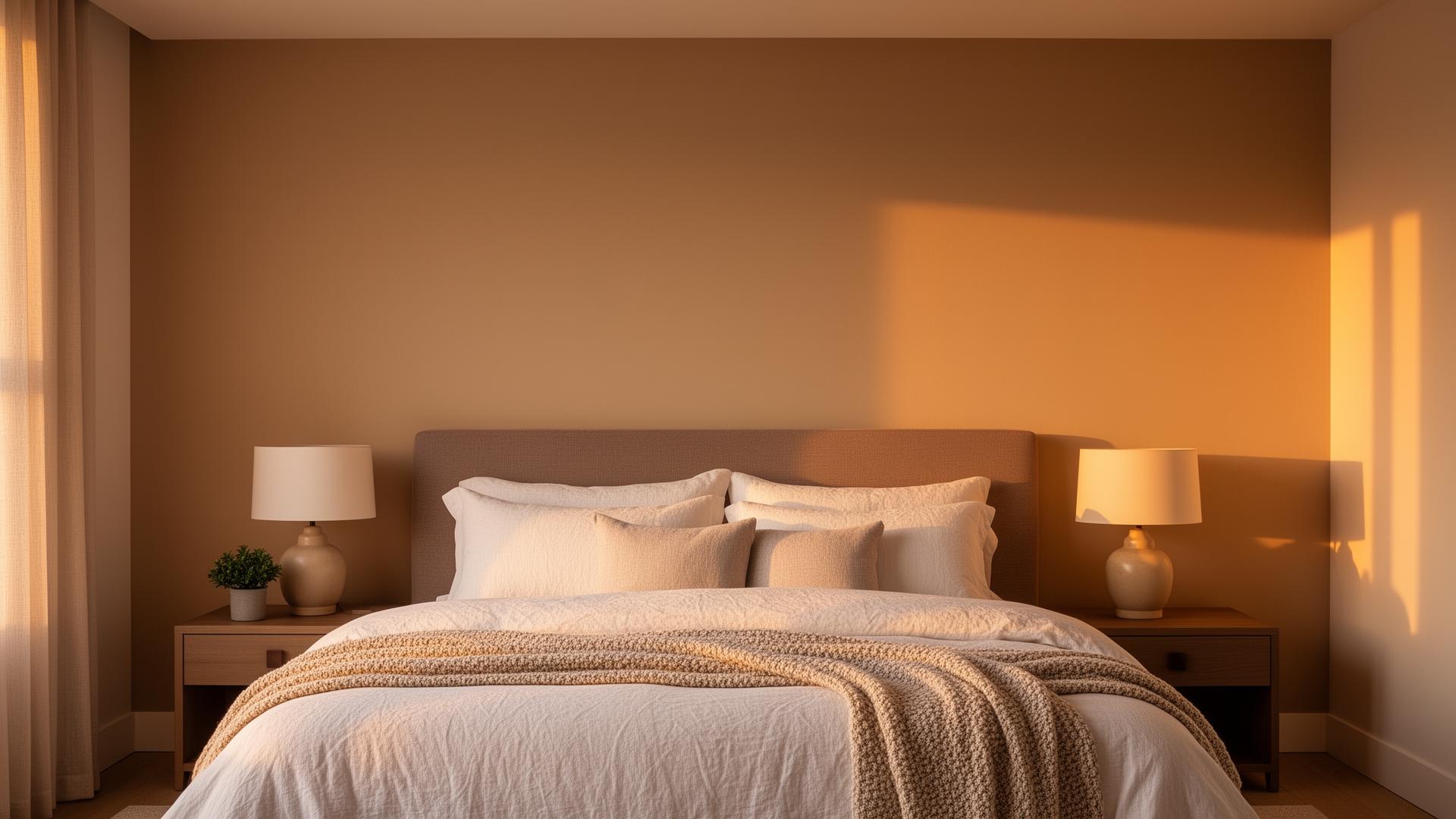
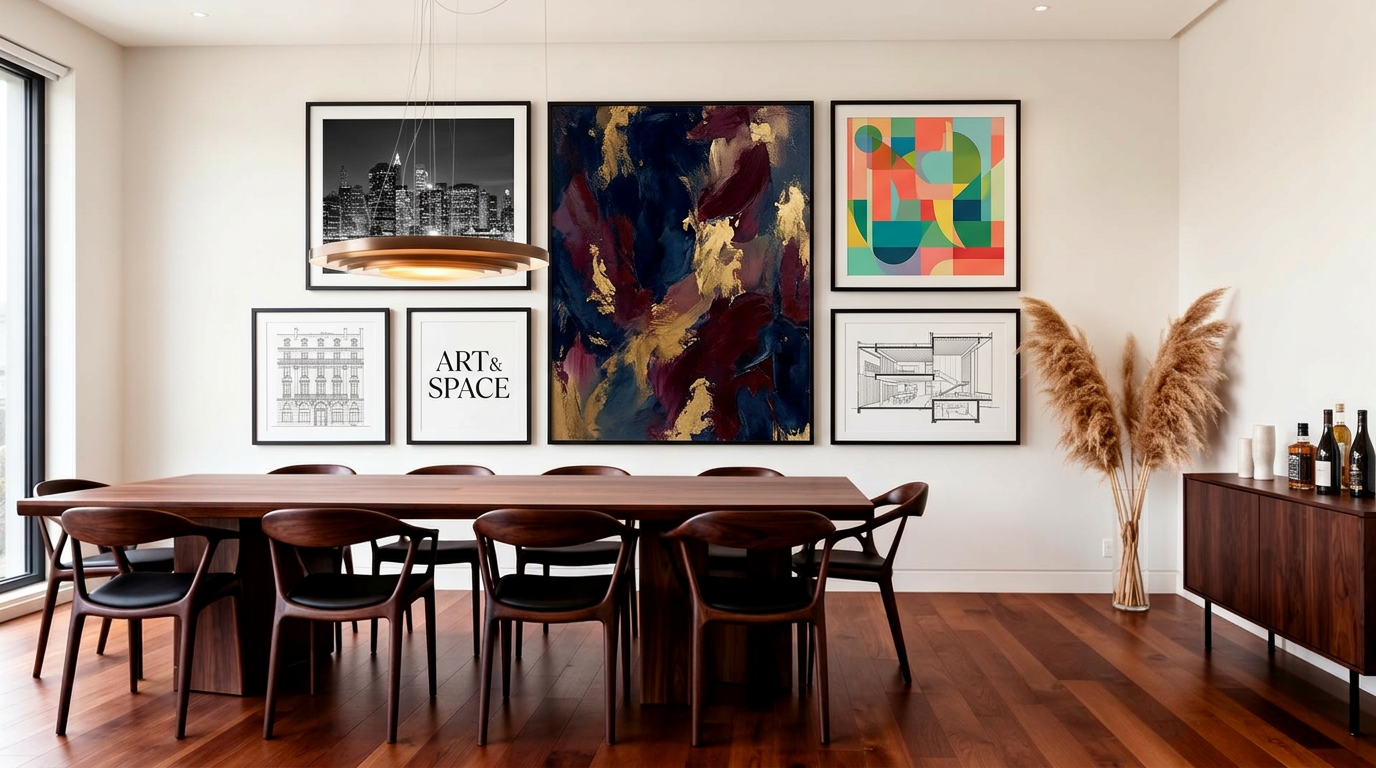
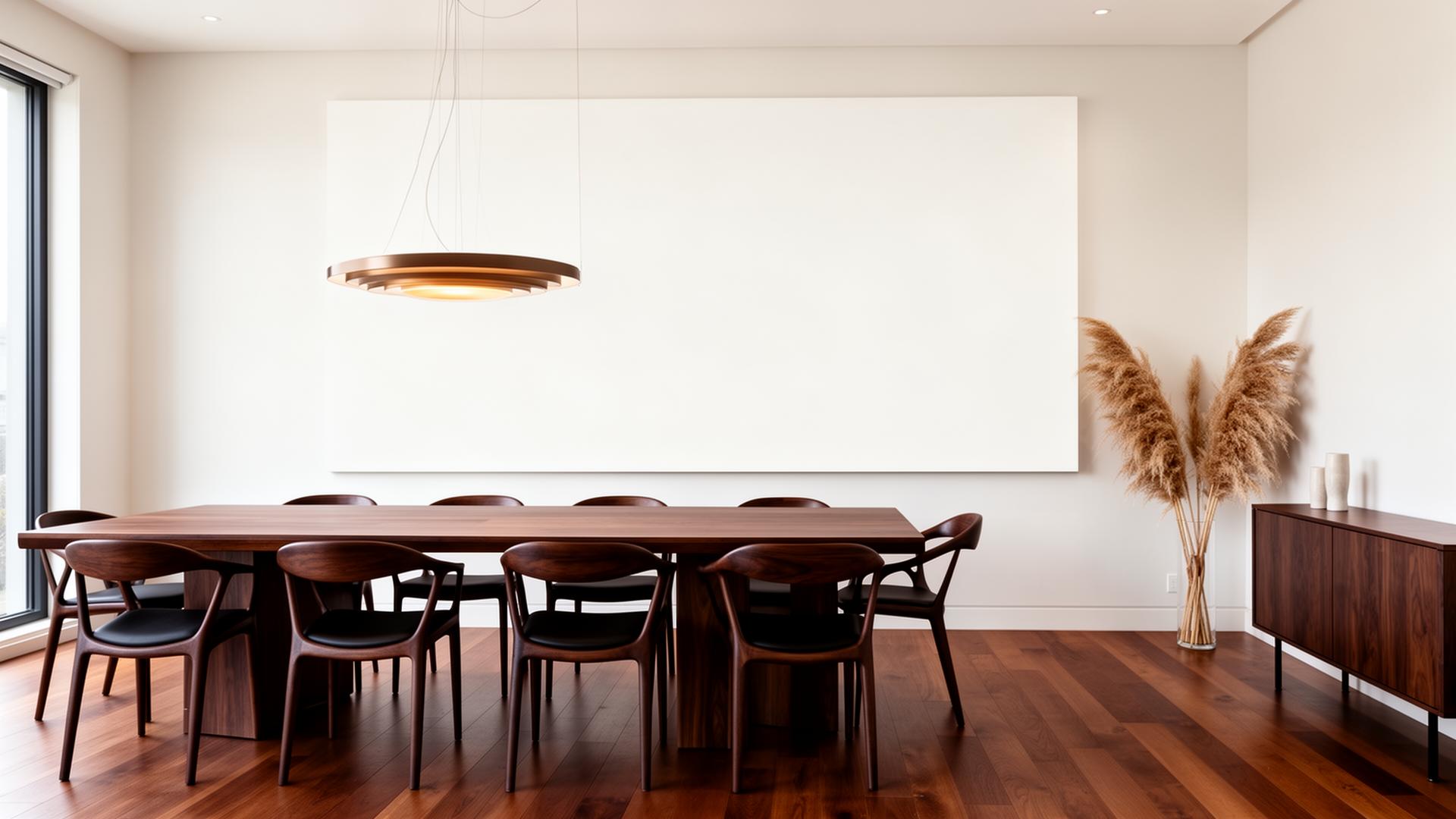
Example walls for illustration. The artwork and arrangements were generated by an AI image model, so a wall made from your photo will look different.
Layout styles
WallMoment has 6 layout styles. You can switch between them when you regenerate your wall.
Gallery Grid
Clustered arrangement with a hero piece
Single Row
Pieces in one horizontal line
Salon Style
Floor-to-ceiling eclectic
Symmetrical
Balanced mirror layout
Vertical Stack
Column of pieces
Diptych / Triptych
2 to 3 matched pieces
Frame and print sizes
Each piece in your wall is assigned one of 13 standard print sizes, from 8″ × 10″ to 24″ × 36″.
| Size | Aspect ratio |
|---|---|
| 8″ × 10″ | 4:5 |
| 10″ × 10″ | 1:1 |
| 11″ × 14″ | 11:14 |
| 12″ × 12″ | 1:1 |
| 12″ × 16″ | 3:4 |
| 12″ × 18″ | 2:3 |
| 14″ × 14″ | 1:1 |
| 16″ × 16″ | 1:1 |
| 16″ × 20″ | 4:5 |
| 18″ × 18″ | 1:1 |
| 18″ × 24″ | 3:4 |
| 20″ × 30″ | 2:3 |
| 24″ × 36″ | 2:3 |
Frame colors: Black, Natural or White. Choose No Frame in the cart to order an unframed print.
Order your prints
Add single pieces to your cart, or buy the whole wall at once. In the cart you choose a frame or No Frame for each piece, then check out.
Plan and preview your wall free, no account needed. You create a free account when you order.
If an order arrives damaged, misprinted or defective, WallMoment offers a free replacement or a full refund within 30 days of delivery.
Questions about shipping or materials are answered in the Help Center.
FAQ
Is there a free gallery wall planner?
Yes. You can upload your wall photo and generate and edit a gallery wall for free, with no account. You only pay if you order prints. Generations have daily limits: as a guest you can make one wall, and a free account allows more.
Can I plan a gallery wall online?
Yes. WallMoment runs in your browser. Upload a photo of your wall and the planner builds the arrangement online.
Is there a gallery wall planner app?
WallMoment works in your phone's browser, so you can take or choose a wall photo on your phone and plan the wall there.
Does it have gallery wall templates or layout styles?
You can choose from 6 layout styles: Gallery Grid, Single Row, Salon Style, Symmetrical, Vertical Stack and Diptych / Triptych.
Does it give exact sizes and spacing?
Each piece is assigned a standard print size. Framed prints come in 13 sizes, from 8″ × 10″ to 24″ × 36″. The AI is instructed to keep even gaps between the frames on your wall photo. WallMoment does not export measurements or hanging instructions.
How many frames or pieces do I need?
The number of pieces depends on the layout style you choose and the empty wall space in your photo. Diptych / Triptych uses 2 to 3 matched pieces, while the other layout styles vary with the space. After the wall is generated, you decide how many of the pieces to add to your cart.
Can I order the prints and frames I plan?
Yes. Add pieces to your cart and choose a Black, Natural or White frame, or No Frame for an unframed print. You create a free account at checkout.